
If your GPU usage is at 100%, it usually means your graphics card is fully utilized. Games, rendering, video editing, or background apps can cause this. It may also happen due to high settings, outdated drivers, or malware. Check Task Manager, lower graphics settings, update drivers, and close unnecessary apps to reduce GPU usage.
This guide explains why GPU usage reaches 100%, when it’s normal, and how to fix high usage while idle.
What Causes GPU Usage to Stay at 100%?
It usually happens when demanding tasks like gaming, rendering, or video editing fully load your graphics card. High graphics settings, background apps, outdated drivers, or malware can also keep usage high. Lower settings, update drivers, and close unnecessary programs to safely reduce GPU load.
Why Is My GPU at 100% Even When I’m Not Gaming?
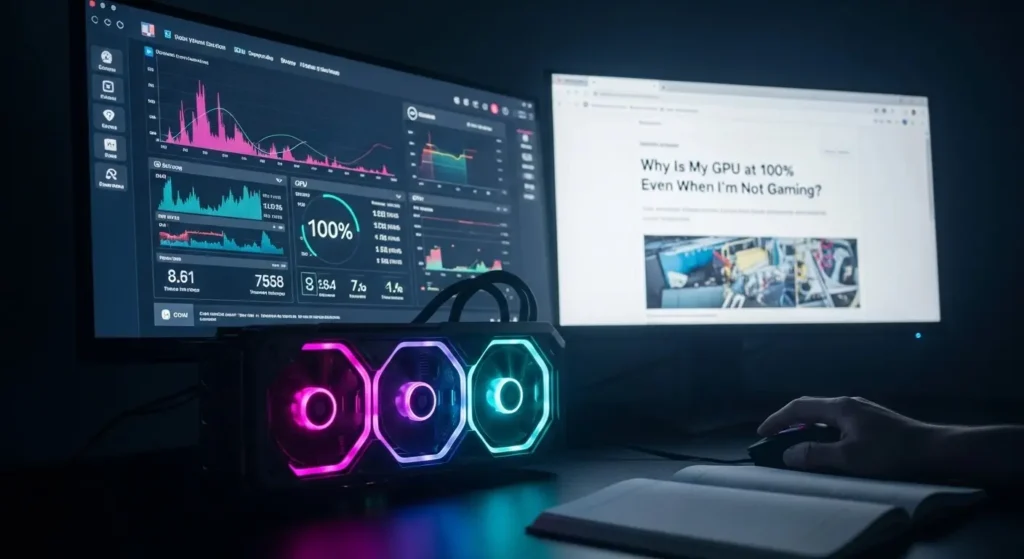
Background apps like browsers, video players, overlays, and Windows processes can heavily use GPU resources. Outdated drivers, high refresh rate monitors, or malware may also cause constant GPU usage. Open Task Manager, disable startup apps, update drivers, and scan your system. This usually fixes the issue quickly.
Common Reasons Your GPU Usage Stays at 100%:
- Heavy Games & 3D Software – Running graphics-intensive games, 3D modeling, or video editing pushes your GPU to full power.
- Ultra Graphics Settings – Maxed-out settings in games or apps force the GPU to work harder than normal.
- Background Programs – Extra apps running silently can consume GPU resources, slowing your PC.
- Outdated or Faulty Drivers – Old GPU drivers reduce performance and can cause 100% usage spikes.
- Malware & Unwanted Software – Viruses or bloatware can hijack GPU power, creating a high load.
- Overheating & Poor Cooling – If your GPU gets too hot, it works harder to stay stable, increasing usage.
- Unused Apps Left Open – Not closing programs while gaming or editing can make the GPU constantly busy.
CPU Bottleneck vs GPU Bottleneck:
| Aspect | CPU Bottleneck | GPU Bottleneck | Explanation / How it Affects Performance |
| Definition | CPU can’t keep up with GPU | GPU can’t keep up with CPU | CPU can’t keep up with the GPU |
| Main Cause | Weak processor or too many tasks | Weak graphics card or high settings | Limits smooth gameplay or app performance |
| Symptoms | Low FPS, stutter even on low graphics | Low FPS, high CPU usage, GPU maxed out | Shows which component needs upgrading |
| When It Happens | Heavy games, 3D rendering, multitasking | High-res graphics, ultra settings, VR | Depends on task and system balance |
| Fix / Solution | Upgrade CPU, close background apps, lower CPU-heavy tasks | Upgrade GPU, lower graphics settings, optimize drivers | Targeted solution improves smooth performance |
| Best Balance Tip | Match CPU power to GPU | Match GPU power to CPU | Avoid bottlenecks by balanced hardware choices |
A bottleneck happens when one component (CPU or GPU) is weaker than the other. It slows down your computer in games or apps. By checking CPU and GPU usage, you can see which one is limiting performance. Fixing the weaker part or adjusting settings gives smoother gameplay and better performance.
How Do I Fix GPU Usage Stuck at 100%?
If your GPU usage is stuck at 100%, first check for heavy programs or background apps. Update your graphics driver, lower game or software settings, and scan for malware. Sometimes, overheating causes high load clean fans and improves airflow. Restarting your PC can also reset GPU performance safely.
Monitor and Improve GPU Cooling:
To monitor and improve GPU cooling, always check your GPU temperature using software. Clean dust from fans and vents, improve case airflow, and use high-quality thermal paste. Upgrading your GPU cooler or adding extra fans can boost performance, prevent overheating, and keep your graphics card safe for heavy gaming or work.
Update GPU Drivers for Optimal Performance:
Updating GPU drivers for optimal performance keeps your PC fast and stable. Install the latest graphics card drivers from your manufacturer to fix crashes, improve game speed, and boost graphics quality. Regular updates prevent errors, enhance reliability, and make your computer run smoothly for all tasks.
Can Background Apps Cause 100% GPU Usage?
Yes, background apps can cause 100% GPU usage. Programs like games, video editors, or heavy browser tabs keep your GPU fully busy, leading to high GPU usage. Check Task Manager, close unnecessary apps, and update your graphics drivers. Doing this reduces GPU load, improves system performance, and keeps gaming or editing smooth.
Also Read: What is NBody Calculation GPU?
Fixing High GPU Usage Without Downgrading Performance:
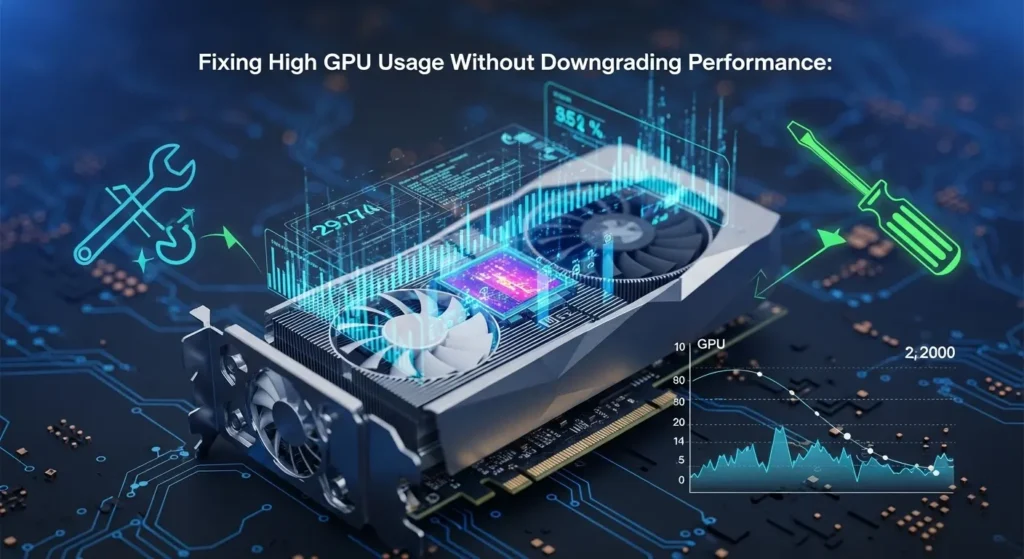
- Update your graphics card drivers to the latest version.
- Close background apps that use GPU power unnecessarily.
- Reduce high-demand settings in games or software without lowering quality too much.
- Keep your GPU cool with proper airflow or fans.
- Monitor GPU usage regularly to prevent spikes and maintain smooth performance.
Updating Drivers and Windows:
Keeping your Windows system and device drivers updated fixes bugs, improves performance, and stops crashes. Go to Windows Update for system updates and use Device Manager or the manufacturer’s website for driver updates. Regular updates make your PC faster, more secure, and smoother for all programs.
Limiting Background GPU-Heavy Tasks:
Close unnecessary apps and programs that use your GPU in the background, like video editors, browsers with many tabs, or crypto miners. Use Task Manager to check GPU usage, pause updates, and schedule heavy tasks for later. This keeps your GPU focused, reducing overheating and improving performance.
Optimizing Game Settings for Efficiency:
To optimize game settings for efficiency, lower graphics quality, reduce resolution, and turn off unnecessary effects like shadows or motion blur. Close background apps, update drivers, and use game modes in your GPU software. These steps make games smoother, reduce lag, and keep your computer cooler for long sessions.
Can Software Settings Overload Your GPU?
- High Settings Strain GPU – Using ultra graphics, high-resolution textures, or maximum effects makes your GPU work at full power.
Example: Playing Cyberpunk 2077 on ultra settings or rendering complex effects in Adobe Premiere Pro can push the GPU to 100%.
- Background Apps Matter – Apps or browser tabs that use the GPU add extra load.
Example: Having 10+ Chrome tabs open while editing a video doubles GPU work.
- Risks of Overload – Too much load can cause overheating, lag, or crashes.
Example: A game freezing or sudden system shutdown often shows GPU overload.
- Simple Fixes – Lower settings, close unnecessary apps, and update drivers.
Example: Switch game graphics to medium or reduce playback quality in Premiere Pro to ease GPU stress.
Also Read: Is CAD Software CPU or GPU-intensive?
Conclusion:
High GPU usage happens due to demanding games, software, high settings, background apps, or outdated drivers. It can cause overheating, lag, or crashes. To fix this, update GPU drivers, lower graphics settings, close unnecessary apps, and improve cooling. Regular monitoring and optimization keep your GPU efficient, ensuring smooth gaming, editing, and overall system performance.
FAQ’s:
1. Is it normal for GPU usage to stay at 100%?
It is not always normal. Sometimes, your GPU works hard when playing games, rendering videos, or doing heavy tasks. But if it stays at 100% all the time, even when doing simple tasks, it could mean a problem with drivers, settings, or background apps.
2. Can outdated drivers cause GPU usage to reach 100%?
Yes, outdated or faulty drivers can make your GPU work harder than needed. Updating your GPU drivers can fix high usage and improve performance.
3. Does running multiple apps at once make GPU usage hit 100%?
Yes, having many apps or browser tabs open can overload your GPU, especially when playing games or video software. Closing unnecessary apps can reduce GPU usage.
4. What programs or games commonly cause 100% GPU usage?
High-end games, video editing software, 3D modeling apps, or cryptocurrency mining programs often push your GPU to 100%. Even web browsers with heavy graphics can sometimes use a lot of GPU power.
5. How can I reduce GPU usage when it stays at 100% all the time?
You can reduce GPU usage by:
- Lowering game or app graphics settings
- Updating GPU drivers
- Closing unnecessary apps running in the background
- Checking for malware that may be using GPU resources