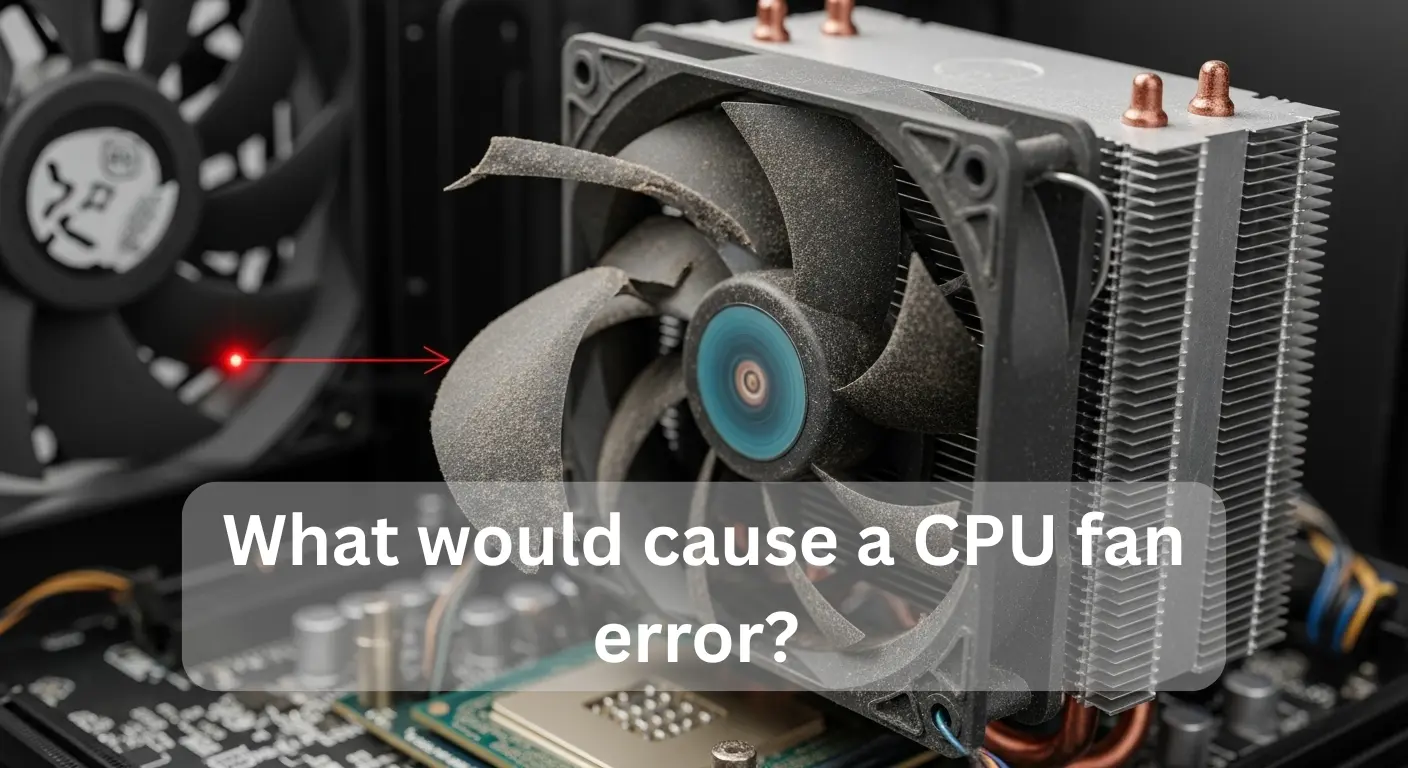
A CPU fan error usually happens when the fan is not spinning properly. Common causes include dust blocking the fan, a loose or unplugged fan cable, a damaged fan, or low fan speed settings in the BIOS. Overheating, old hardware, or wrong BIOS settings can also trigger this warning and need quick checking.
Understanding the real cause of a CPU fan error helps you fix the problem quickly and keep your computer safe and stable.
What Is a CPU Fan Error and Why Does It Appear?
A CPU fan error is a system warning that appears when the motherboard cannot detect the CPU cooling fan. It often happens due to a loose fan cable, dust buildup, fan failure, or wrong BIOS settings. This error is serious because poor cooling can cause CPU overheating, system shutdowns, or long-term hardware damage.
Common Reasons That Cause a CPU Fan Error:
| Common Reasons That Cause a CPU Fan Error | Clear & Helpful Explanation |
| Loose or unplugged CPU fan cable | The CPU fan is not properly connected to the motherboard, so the system cannot detect the fan speed |
| Dust is blocking the CPU cooling fan | Heavy dust buildup stops the fan from spinning smoothly and reduces airflow |
| Failed or slow CPU fan | A damaged or worn-out CPU fan cannot cool the processor properly |
| Incorrect BIOS fan settings | Wrong CPU fan speed or monitoring settings in BIOS trigger a CPU fan error |
| Using an incompatible CPU fan | A non-original or low-quality fan may not send accurate RPM signals |
Can a Loose or Unplugged CPU Fan Cause This Error?
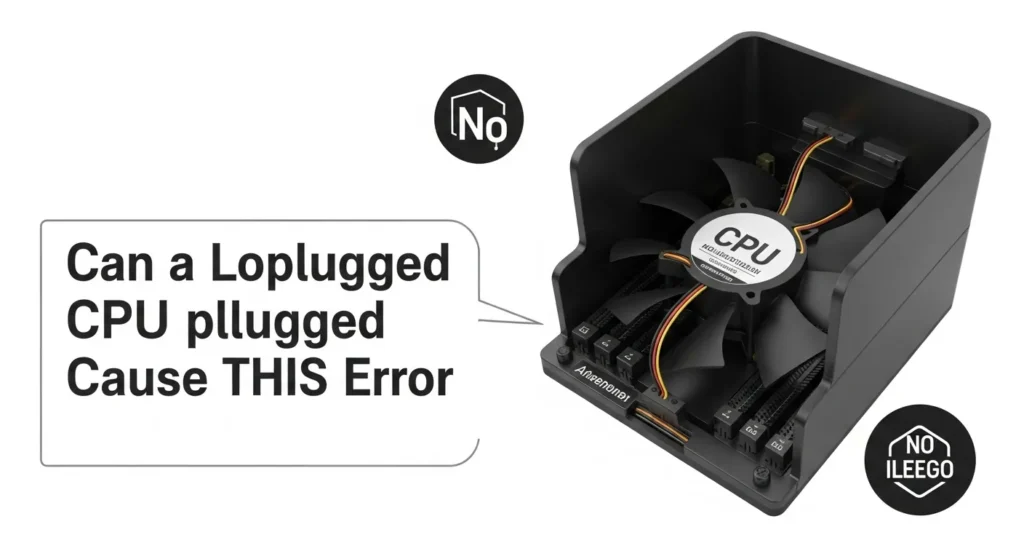
Yes, a loose or unplugged CPU fan can cause a CPU fan error message on startup. When the fan cable is not connected to the motherboard fan header, fan speed monitoring fails. The BIOS then shows a warning to prevent system overheating. This CPU cooling system issue may keep showing even if the fan is working, especially after cleaning the PC or a BIOS update.
Also Read: Is Roblox CPU Or GPU Intensive
How Dust and Dirt Lead to CPU Fan Errors:
- Dust blocks the CPU cooling system: Dust and dirt reduce airflow, making cooling weak and unsafe.
- Fan speed monitoring fails: When dust slows the fan, the motherboard fan header may not detect the correct speed.
- CPU fan error on startup: This is a common CPU fan error message shown during boot.
- CPU fan error, but the fan is working: The fan spins, but low speed causes detection failure.
- CPU fan error keeps showing: Ongoing dust causes repeated system overheating warnings.
- Computer won’t start, CPU fan error: To protect the CPU, the system may stop booting.
- CPU fan error after cleaning PC or BIOS update: Wrong BIOS fan settings can trigger errors if the speed is not detected.
Impact: These CPU fan error causes reduce system performance and can damage hardware if ignored.
Can Incorrect BIOS Settings Cause a CPU Fan Error?
Yes. Incorrect BIOS fan settings are one of the main CPU fan errors. When the CPU cooling system cannot send correct data, fan speed monitoring fails, and a CPU fan error message appears on startup.
Why This Happens:
- Wrong BIOS fan settings after a BIOS update
- Fan connected to the wrong motherboard fan header
- Fan speed not detected after cleaning the PC
This can trigger a system overheating warning, and sometimes the computer won’t start due to a CPU fan error, even if the fan is working.
How Low Fan Speed Causes CPU Fan Error Messages:
A CPU fan error message appears when your fan spins too slowly. The motherboard detects low fan speed to protect the CPU from overheating, which can affect system performance. Common CPU fan error causes include dust buildup, a loose motherboard fan header, or incorrect BIOS fan settings.
- Example: If your CPU fan runs slowly, you may see “CPU fan error on startup” even though the fan is working. After cleaning your PC or updating the BIOS, the error may still show if fan speed monitoring is off. Fixing BIOS settings, checking connections, and monitoring the CPU cooling system keep your computer safe and prevent system overheating warnings.
Is a CPU Fan Error Dangerous for Your Computer?
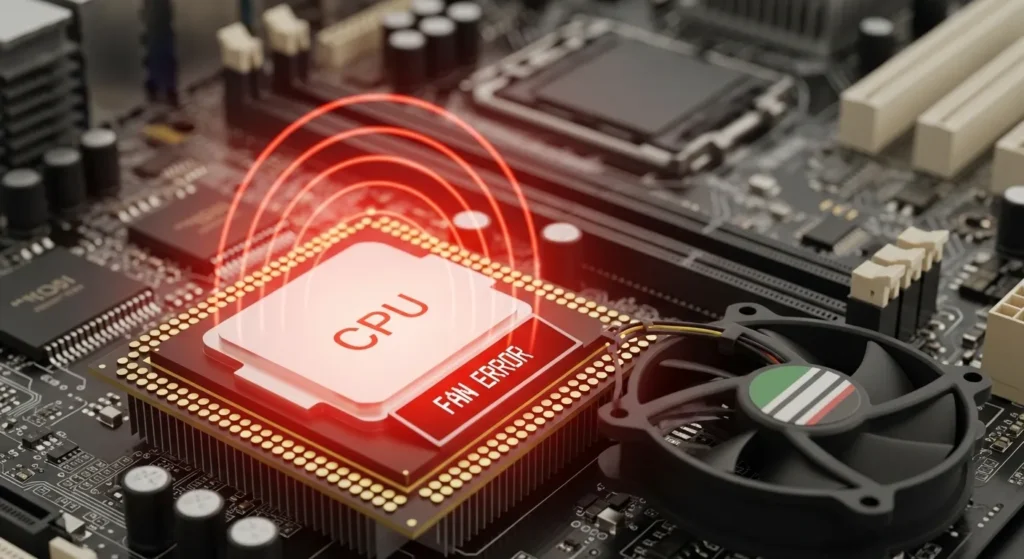
CPU Fan Error Meaning:
A CPU fan error usually shows when your CPU cooling system is not detected properly. Sometimes the fan is working, but the motherboard reports an error. This is called a CPU fan error, but the fan is working.
Why It Happens:
Common causes include CPU fan error on startup, after cleaning your PC, or after a BIOS update. Other reasons are dust, loose cables, or wrong BIOS fan settings.
- Example: After updating the BIOS, your PC shows a CPU fan error message, even though the fan spins normally.
System Overheating Risk:
A CPU fan error warns of system overheating, which can cause crashes, automatic shutdowns, or slowdowns.
- Example: Your computer won’t start CPU fan error appears, preventing damage to your processor.
Performance Impact:
If ignored, your CPU may throttle itself to reduce heat, lowering speed and system performance.
Example: Games lag or apps freeze because the CPU slows down due to a fan error.
Long-Term Damage:
Continuous overheating can damage your CPU or motherboard permanently costly repairs may be needed.
Quick Fix Tips:
- Check the motherboard fan header for loose connections.
- Clean dust carefully.
- Adjust fan speed monitoring in BIOS.
- Replace a faulty fan immediately.
Summary:
A CPU fan error is serious. Even if the fan works, ignoring it risks overheating, crashes, and hardware damage. Always check your CPU cooling system and BIOS settings to keep your computer safe.
How to Fix a CPU Fan Error Step by Step:
| Step | Action | Details / Tips |
| 1 | Turn off PC & unplug | Always power off your computer and unplug it from the electricity to stay safe. |
| 2 | Open the computer case | Remove the side panel carefully to access the CPU and fan. |
| 3 | Check the fan connection | Make sure the CPU fan cable is firmly connected to the motherboard header. |
| 4 | Clean the fan | Use a soft brush or compressed air to remove dust from the fan blades and heatsink. |
| 5 | Inspect for damage | Look for broken blades or a noisy motor; if damaged, the fan must be replaced. |
| 6 | Replace the fan if needed | Buy a compatible CPU fan and connect it properly to the motherboard. |
| 7 | Restart PC & enter BIOS | Check the CPU fan speed reading in BIOS to confirm it is detected and running. |
| 8 | Monitor temperatures | Ensure your CPU stays cool while using your PC; the fan should run smoothly. |
When Should You Replace the CPU Fan?
You should replace your CPU fan when it shows CPU fan error messages, makes loud noises, or fails to spin correctly. Even if the CPU fan is working, errors can appear after cleaning your PC or a BIOS update, and high CPU temperatures may cause a system overheating warning. Check fan speed monitoring and BIOS fan settings through the motherboard fan header. Timely replacement prevents CPU fan detection failure, protects your CPU, and keeps your computer stable, fast, and safe. Ignoring errors can impact system performance and even stop your computer from starting.
Also Read: Is Fallout 4 CPU Or GPU Intensive
FAQ’s:
1. Can dust buildup cause a CPU fan error?
Yes. Dust can block the CPU fan blades, reducing fan speed. When the fan cannot spin properly, the system detects low RPM and shows a CPU fan error. Regular cleaning helps prevent overheating and keeps the fan working correctly.
2. Can a loose or unplugged CPU fan trigger this error?
Yes. If the CPU fan cable is loose or not connected to the motherboard header, the system cannot read the fan speed. As a result, the BIOS shows a CPU fan error during startup.
3. Can a failing or slow CPU fan cause a CPU fan error message?
Yes. An old or damaged CPU fan may spin very slowly or stop suddenly. When the fan RPM goes below the safe limit, the motherboard sends a CPU fan error warning to protect the processor from overheating.
4. What are the most common reasons behind a CPU fan error?
Common reasons include dust buildup, loose fan connections, broken fan motors, incorrect BIOS settings, or using a fan that does not meet RPM requirements. Any issue that stops the system from detecting the proper fan speed can cause this error.
5. How does a CPU fan error affect computer performance and safety?
A CPU fan error can lead to high CPU temperatures. This may cause slow performance, automatic shutdowns, or even permanent CPU damage if ignored. Fixing the error quickly helps protect your computer and keeps it running safely.
Conclusion:
A CPU fan error signals cooling issues that can harm your computer. Causes include loose cables, dust, slow or faulty fans, and wrong BIOS settings. Fix it by checking connections, cleaning the fan, adjusting the BIOS, or replacing a damaged fan. Timely action ensures proper cooling, prevents overheating, protects your CPU, and keeps your system stable and fast.
Also Read: How Many Threads Does My CPU Have?