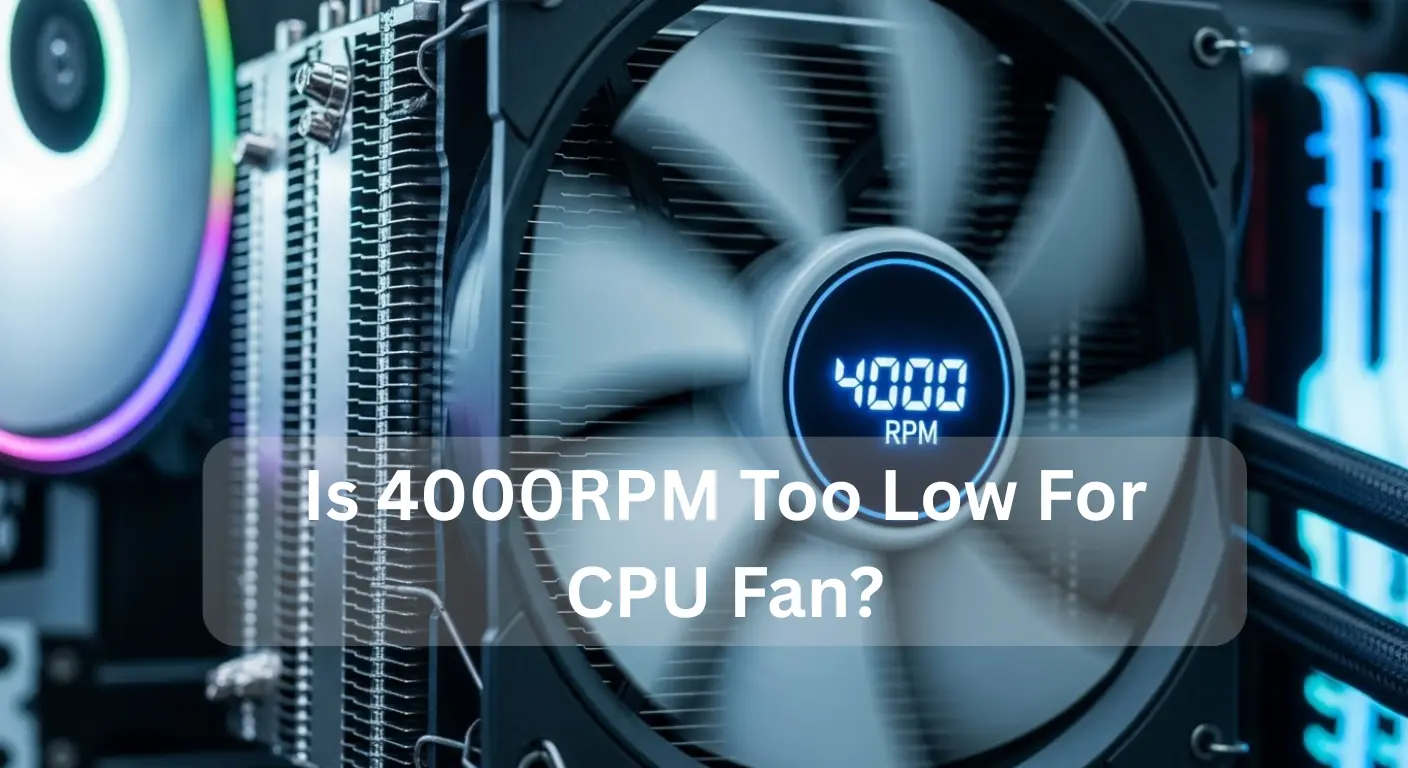
No, 4000RPM is not low at all. In fact, it is very high for a normal CPU fan, as most fans run between 1000 2000RPM. If your fan shows 4000RPM, it may be under heavy load, set to max speed in BIOS, or you are seeing a liquid cooler pump speed.
In this guide, we explain what 4000 RPM really means, how it affects your CPU temperature, and when you should adjust your fan settings. With simple language and clear steps, you’ll understand whether 4000 RPM is enough for your system or not.
What Does RPM Mean in CPU Fans?
RPM means Revolutions Per Minute. It shows how fast a CPU fan spins in one minute. Higher RPM means the fan spins faster and removes heat better, but it can be louder. Lower RPM is quieter but cools less. RPM helps you understand cooling performance and noise balance.
Typical CPU Fan RPM Ranges (Idle, Gaming, Heavy Load):
| System Load | Typical RPM | 4000 RPM Status |
| Idle | 600–1200 | Too high |
| Gaming | 2000–3000 | Higher than normal |
| Heavy Load / Stress Test | 3500–4500+ | Normal |
| Stock Air Cooler | 3000–4500 | Depends on CPU |
| AIO Liquid Cooler | 1500–2500 | Too high |
Tip: Your CPU fan speed may fluctuate depending on workload and fan curve settings in BIOS or software.
What Causes the CPU Fan to Run at 4000 RPM?
A CPU fan running at 4000 RPM usually happens when your processor heats up under heavy load. Tasks like gaming, video editing, or stress testing the CPU push it to work harder, increasing fan speed. Factors like dust buildup, poor case airflow, low-quality thermal paste, or a weak heatsink reduce cooling efficiency. Ambient temperature also affects performance. Choosing the right air cooler vs a liquid cooler, ensuring proper ventilation, and monitoring the noise-to-performance ratio help maintain optimal fan RPM and protect your CPU.
Also Read: Can I Sell My Used CPU?
Is 4000 RPM Bad for Your CPU Fan? (Lifespan & Noise):
No, 4000 RPM is not bad for your CPU fan. It is actually a strong speed that keeps your processor cool, even under heavy use. High RPMs may create some extra noise, but it does not harm your fan or CPU.
- Strong Cooling Performance: 4000 RPM is a high speed for a CPU fan, giving excellent cooling under heavy load CPU fan speed conditions. It keeps your processor safe during gaming, stress testing the CPU, or demanding tasks.
- Noise-to-Performance Ratio: High RPM can increase CPU fan noise levels slightly. However, the noise-to-performance ratio is worth it for stable performance and long-term CPU protection.
- Fan Lifespan: Running a fan at 4000 RPM does not damage it if maintained properly. Prevent dust buildup, check heatsink quality, and ensure thermal paste issues are avoided for longer fan life.
- Idle Fan RPM & Load Balance: While 4000 RPM is great for cooling under load, your idle fan RPM remains lower on most systems. Modern fans adjust automatically to save energy and reduce unnecessary noise.
- Case Ventilation & Airflow: Proper ventilation, PC case ventilation, and ambient temperature cooling help your fan work efficiently. Choosing between an air cooler and vs liquid cooler depends on system needs, but both handle high RPMs safely.
Maintenance Tips:
- Clean dust regularly to prevent overheating.
- Ensure proper mounting and good case airflow.
- Apply thermal paste correctly to optimize heatsink contact.
Summary: 4000 RPM is safe and effective for your CPU. Minor noise is normal, but the fan ensures maximum cooling, protects your processor, and lasts many years when maintained well. Perfect for gaming, heavy workloads, and reliable PC hardware cooling systems.
Air Cooler vs AIO: Is 4000 RPM Normal for Both?
| Cooler Type | Normal RPM Range | Notes |
| Stock Air Cooler | 3000–4500 | 4000 RPM is normal for a heavy load |
| Tower Air Cooler | 2000–3000 | 4000 RPM may be higher than needed |
| AIO Liquid Cooler | 1200–2500 | 4000 RPM is unusually high |
| Radiator Fans | 1200–2500 | Should remain quiet; check BIOS fan curve |
Tip: Always match fan speed to cooler type and workload.
How to Check Your CPU Fan RPM and Temperatures:
Use these tools and methods:
- HWMonitor – real-time CPU temps and fan RPM
- MSI Afterburner – monitor CPU/GPU cooling
- NZXT CAM – software fan curve control
- BIOS – direct fan monitoring and curve adjustments
How to Reduce CPU Fan RPM from 4000 (If Too Loud):
- Improve Case Airflow:
- Add intake/exhaust fans
- Remove hot air pockets
- Clean Dust:
- Fan blades
- Heatsink fins
- Inside the case
- Apply New Thermal Paste:
Old paste can increase CPU temp
- Adjust BIOS Fan Curve
- Reduce max RPM:
- Set temperature thresholds
- Upgrade Cooler:
- Larger air cooler or AIO liquid cooler
Factors That Determine Ideal Fan Speed:
The ideal fan speed depends on CPU temperature, workload, case airflow, and fan quality. High-performance tasks need faster fans, while light use allows slower speeds for quiet operation. Proper balance ensures cooling efficiency, reduces noise, and prolongs hardware life, keeping your PC safe and stable under all conditions.
Also Read: Do I Need To Reinstall Windows With New CPU?
How to Adjust Fan Speed, Fan Curves & BIOS Settings?

- Enter BIOS or Software: Restart your PC and press the BIOS key (usually F2 or DEL), or use trusted fan control software like MSI Afterburner. This gives full control over BIOS fan control and PWM fan control settings.
- Locate Fan Settings: In BIOS or software, check sections like “Hardware Monitor,” “Fan Control,” or “PC Health Status.” Proper navigation ensures safe CPU temperature levels and helps avoid CPU fan noise issues.
- Set Fan Speeds: Adjust RPM manually or select modes like Silent, Balanced, or Performance. Balancing speed avoids noise at high RPM while maintaining cooling system performance.
- Create Custom Fan Curves: Map CPU temperature to fan speed to optimize the noise-to-performance ratio. This prevents overheating and reduces fan bearing wear, ensuring longevity.
- Apply & Monitor: Save settings and run a stress test to monitor CPU temperature and hardware cooling systems. Ensure proper ventilation, apply thermal paste if needed, and consider upgrading the CPU cooler for a better cooling setup.
- Maintain Long-Term CPU Health: Regularly check fan performance, CPU temperature, and PC case ventilation. Comparing cooling solutions or using AIO radiator fans helps maintain safe CPU temperature levels and overall system reliability.
When to Upgrade or Replace Cooling?
If your CPU fan constantly spins at high RPM, like 4000 RPM, and creates noticeable noise, it’s a clear sign to consider upgrading your cooling system. While high RPMs themselves don’t harm your CPU, prolonged stress on the fan can reduce cooling efficiency and increase noise levels, affecting comfort and system performance.
Better Cooling Options:
- Larger Air Coolers: Fans of 120mm or 140mm improve airflow management, moving more air at lower RPM. This reduces fan noise while maintaining optimal heat dissipation.
- AIO Liquid Coolers: All-in-one liquid cooling systems with radiator fans offer superior temperature control, efficient heat dissipation, and quieter operation, even during heavy load CPU fan speeds or gaming sessions.
Upgrading improves hardware longevity, ensures stable temperature levels, and keeps your PC running smoothly under stress testing or high ambient temperature conditions. Proper PC case ventilation combined with the right cooler makes all the difference.
What’s a good fan speed for your PC?
A good fan speed for your PC depends on how you use it and your CPU temperature levels. For normal tasks, an idle fan RPM of 1000–2000 keeps your system quiet and stable. During gaming or heavy loads, increase fan speed for gaming to 2500–4000 RPM to improve heat dissipation and cooling efficiency. Managing airflow through your PC case ventilation or using an air cooler vs a liquid cooler setup helps reduce CPU fan noise levels. Stress testing the CPU ensures your hardware cooling system works perfectly, keeping your PC safe and long-lasting.
FAQ’s:
1: Is 4000 RPM good for gaming?
Yes, it’s normal for heavy gaming workloads, but noise may increase.
2: Is it safe for the CPU if the fan runs at 4000 RPM all the time?
Yes, the CPU is safe; just check for unnecessary stress or dust buildup.
3: Why is my CPU fan stuck at 4000 RPM?
Possible reasons: high CPU temp, poor airflow, dusty heatsink, or BIOS fan curve misconfiguration.
4: Does 4000 RPM reduce fan lifespan?
High RPM slightly increases wear, but quality fans can last years.
5: What is the ideal CPU fan RPM for summer?
Depends on workload and cooler; tower air coolers: 2000–3000 RPM, AIO: 1200–2500 RPM.
Conclusion:
A CPU fan running at 4000 RPM is generally effective for cooling, particularly under heavy loads like gaming or stress testing. While it may produce some noise, it doesn’t harm the fan or the CPU. Proper maintenance, including dust removal and thermal paste application, ensures optimal performance. If noise becomes excessive or cooling efficiency declines, consider upgrading your cooling system or adjusting fan curves for a quieter and more efficient setup. Regular monitoring of CPU temperature and fan speed is essential for long-term hardware health.